Turn any IP address into rich location, security, and network data right inside your Google Sheet, with no coding experience needed.
IPGeolocation.io for Google Sheets is a free Google Apps Script integration that lets you look up any IP address directly from a spreadsheet cell. You type a formula, and the sheet fills in the country, city, timezone, currency, internet provider, VPN status, proxy status, and threat score for that IP address automatically.
This guide is written for everyday spreadsheet users. You do not need to be a developer. If you can copy and paste, you can set this up in under ten minutes.
Once you finish setup, head to the All Available Formulas section to start using the integration right away.
Once set up, you can enrich any list of IP addresses with the following data types.
Location data includes country, city, state, latitude, and longitude.
Network data includes ASN number, organization name, and internet provider.
Time and currency includes timezone name and local currency code.
Security signals include VPN detection, proxy detection, Tor detection, bot detection, cloud provider flag, and a numeric threat score.
Bulk enrichment lets you look up hundreds of IP addresses at once using a single formula. See the Bulk Lookup Formula section for details.
This makes the integration ideal for fraud review teams, security analysts, marketing analysts, and operations teams who work with IP address data inside Google Sheets.
A Google account with Google Sheets access is required for the entire setup process.
An IPGeolocation.io account is needed to access the API. You can sign up free at ipgeolocation.io.
Your IPGeolocation.io API key is what connects the sheet to the service. Find it in your dashboard after signing in. See the Save Your API Key step for how to use it.
Permission to open Extensions and Apps Script in Google Sheets is required to paste the code. Most Google accounts have this by default.
The setup takes about ten minutes from start to finish. Follow each step in order. If you run into any issues, the Troubleshooting section covers the most common problems.
Open the Google Sheet where you want to use IP lookups. If you are starting fresh, create a new sheet. A simple starting layout works well.
Column A for IP Address, Column B for Country, Column C for City, Column D for Timezone, Column E for ASN Organization, Column F for Is VPN, and Column G for Threat Score.
Add a couple of test IP addresses in column A to get started:
8.8.8.8
1.1.1.1
In Google Sheets, go to the top menu and follow this path:
Extensions > Apps Script
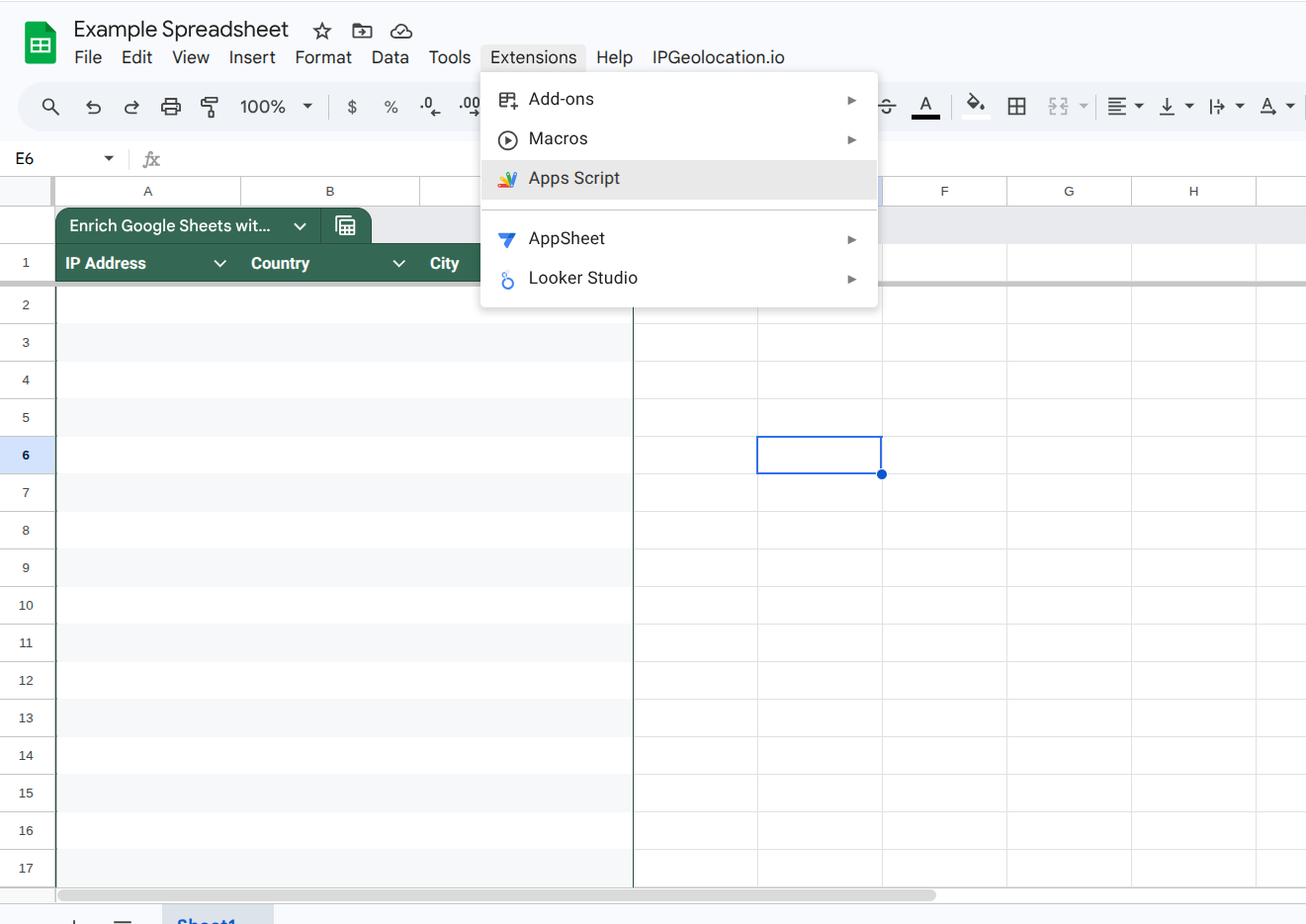
A new browser tab will open. This is the Apps Script editor, where you will paste the integration code. Keep this tab open for the next two steps.
Inside the Apps Script editor, you will see a file called Code.gs in the left panel. Click on it.
Delete any starter code already in the file, then paste the full contents of the provided Code.gs in the editor window.
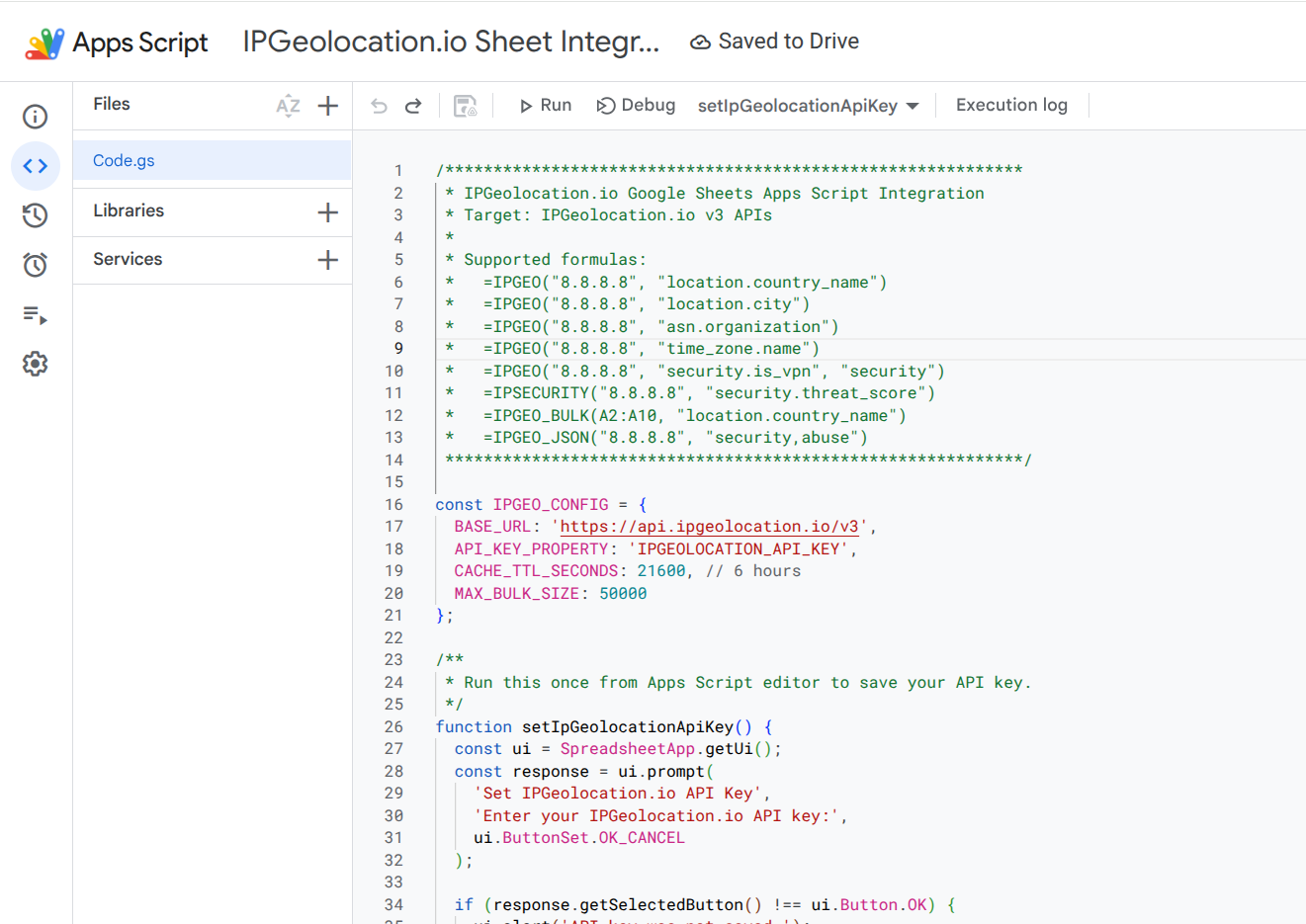
Click the Save button (the floppy disk icon). You can name the project something like:
IPGeolocation.io for Google Sheets
After saving, move on to the next step to connect your API key.
This step connects your IPGeolocation.io account to the script. You only need to do it once per sheet.
In the Apps Script editor, find the function dropdown near the top toolbar and select:
setIpGeolocationApiKey
Click Run.
The first time you run a function, Google will ask you to review and approve permissions. This is completely normal. The script needs permission to make requests to the IPGeolocation.io API on your behalf. Click through to approve.
After permission is granted, a small popup will appear asking for your API key. Paste your IPGeolocation.io API key and click OK.
Your key is now saved securely inside the script settings. You never need to put it inside a formula or a cell. To learn more about why this matters, see Important Notes About API Keys.
Go back to your Google Sheet tab and refresh the page. Press F5 or Ctrl+R on Windows, or Command+R on Mac.
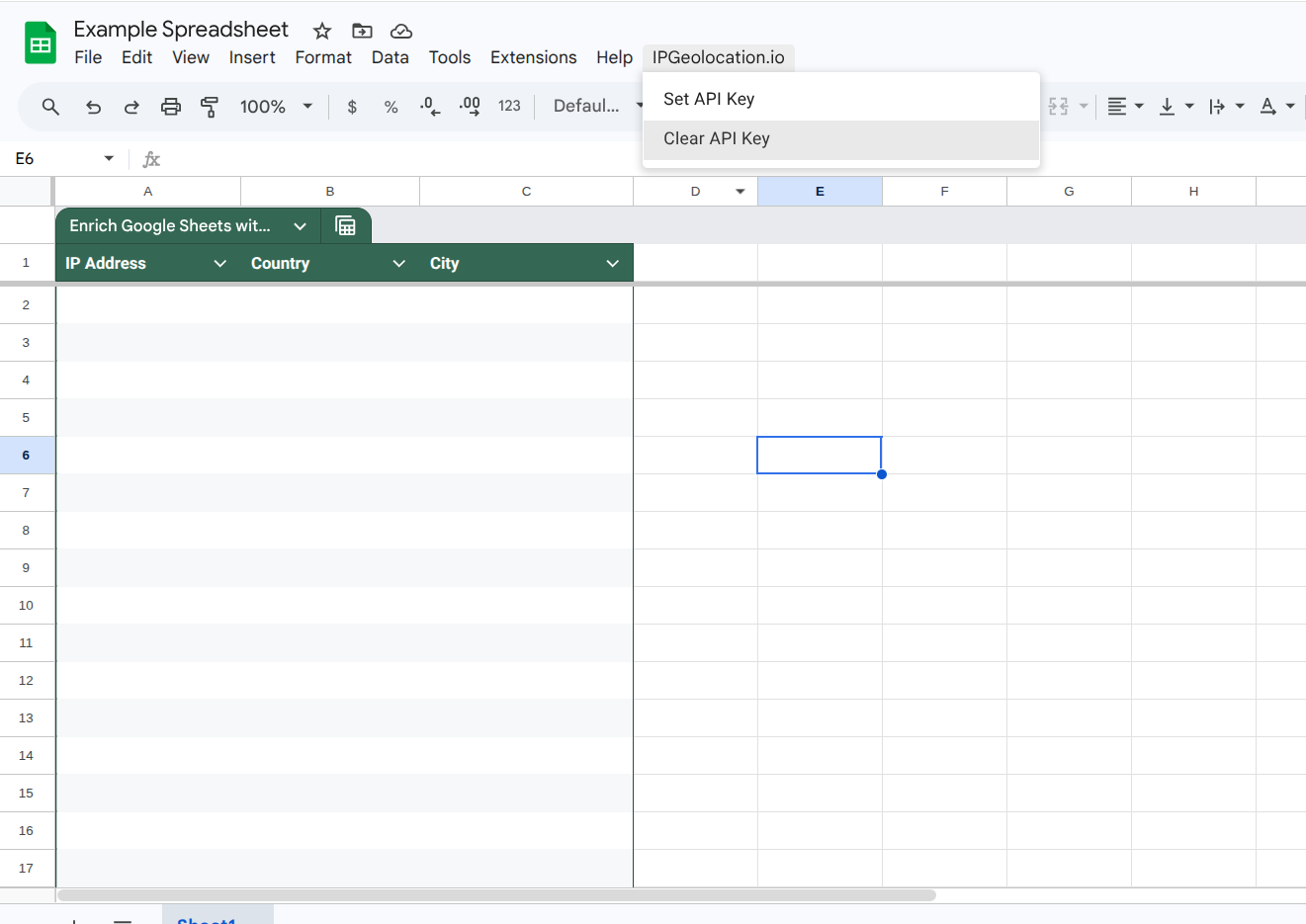
After refreshing, you should see a new menu appear at the top of your sheet:
IPGeolocation.io
This menu gives you quick access to set or clear your API key whenever you need to. If the menu does not appear, refresh the page one more time. If it still does not show, check the Troubleshooting section.
If you need to remove your API key at any time, use the Clear API Key option in the menu.
Click any empty cell in your sheet and type this formula:
=IPGEO("8.8.8.8", "location.country_name")
Press Enter. After a moment, the cell should show:
United States
If that works, your setup is complete. Try a couple more to confirm everything is working:
=IPGEO("8.8.8.8", "location.city")
=IPGEO("8.8.8.8", "asn.organization")
Once these are returning results, you are ready to explore the Recommended Sheet Layout or jump straight to All Available Formulas.
Here is a clean layout you can use as your starting template. Paste IP addresses in column A, and use formulas in columns B onward. After entering your formulas in row 2, drag them down to cover all your data rows.
Column B for Country
=IPGEO(A2, "location.country_name")
Column C for City
=IPGEO(A2, "location.city")
Column D for State or Province
=IPGEO(A2, "location.state_prov")
Column E for Timezone
=IPGEO(A2, "time_zone.name")
Column F for Currency
=IPGEO(A2, "currency.code")
Column G for ASN Organization
=IPGEO(A2, "asn.organization")
Column H for Is VPN
=IPGEO(A2, "security.is_vpn", "security")
Column I for Is Proxy
=IPGEO(A2, "security.is_proxy", "security")
Column J for Threat Score
=IPGEO(A2, "security.threat_score", "security")
For a full explanation of every formula available, see the All Available Formulas section below. For large lists of IP addresses, the Bulk Lookup Formula is faster and cleaner than dragging formulas down row by row.
This section covers every formula included in the integration. If you are new, start with Location Formulas. If you are building a fraud or security workflow, go straight to Security Formulas or the Dedicated Security Formula.
=IPGEO(A2, "location.country_name")
Returns the full country name, for example United States or Germany.
=IPGEO(A2, "location.country_code2")
Returns the two-letter country code, for example US or DE.
=IPGEO(A2, "location.city")
Returns the city name.
=IPGEO(A2, "location.state_prov")
Returns the state or province.
=IPGEO(A2, "location.latitude")
Returns the latitude coordinate.
=IPGEO(A2, "location.longitude")
Returns the longitude coordinate.
=IPGEO(A2, "time_zone.name")
Returns the timezone name, for example America/New_York.
=IPGEO(A2, "currency.code")
Returns the currency code, for example USD or EUR.
=IPGEO(A2, "asn.as_number")
Returns the ASN number.
=IPGEO(A2, "asn.organization")
Returns the organization name associated with the IP address.
Security fields require the third parameter "security" in the formula. Without it, security fields will return blank. If you run into issues here, see the Security fields are returning blank entry in the Troubleshooting section.
=IPGEO(A2, "security.is_vpn", "security")
Returns TRUE or FALSE based on whether the IP is detected as a VPN.
=IPGEO(A2, "security.is_proxy", "security")
Returns TRUE or FALSE based on whether the IP is detected as a proxy.
=IPGEO(A2, "security.is_tor", "security")
Returns TRUE or FALSE based on whether the IP is detected as a Tor exit node.
=IPGEO(A2, "security.is_bot", "security")
Returns TRUE or FALSE based on whether the IP is detected as a bot.
=IPGEO(A2, "security.is_cloud_provider", "security")
Returns TRUE or FALSE based on whether the IP belongs to a cloud provider such as AWS, Azure, or Google Cloud.
=IPGEO(A2, "security.threat_score", "security")
Returns a numeric threat score. Higher scores indicate more suspicious activity.
Before using security formulas heavily, read Important Notes About API Credits to understand how they affect your usage.
You can also use the dedicated IPSECURITY formula, which calls a specialized security endpoint directly. This is particularly useful for fraud review, abuse detection, and login monitoring workflows.
=IPSECURITY(A2, "security.threat_score")
=IPSECURITY(A2, "security.is_vpn")
=IPSECURITY(A2, "security.is_proxy")
The difference between this and the standard Security Formulas above is that IPSECURITY goes directly to the /v3/security endpoint, which may return more detailed results depending on your account plan. See Technical Reference for endpoint details.
These shortcut formulas save typing for the most common lookups. They are equivalent to the longer IPGEO versions but faster to write.
=IPGEO_COUNTRY(A2)
=IPGEO_CITY(A2)
=IPGEO_TIMEZONE(A2)
=IPGEO_ASN_ORG(A2)
=IPGEO_IS_VPN(A2)
=IPGEO_THREAT_SCORE(A2)
When you have a large list of IP addresses, use IPGEO_BULK instead of individual formulas. It processes up to 50,000 IP addresses in a single call and fills a column of results automatically. This is much faster and puts less strain on your sheet than dragging individual formulas down hundreds of rows.
=IPGEO_BULK(A2:A100, "location.country_name")
=IPGEO_BULK(A2:A100, "security.is_vpn", "security")
=IPGEO_BULK(A2:A100, "security.threat_score", "security")
If your sheet is running slowly because of too many individual formulas, switching to bulk lookup is the recommended fix. See the The sheet has too many individual formulas entry in the Troubleshooting section.
If you want to see everything the API returns for an IP address, the IPGEO_JSON formula is useful for discovering which fields are available on your account plan.
=IPGEO_JSON(A2)
For the full response including security details:
=IPGEO_JSON(A2, "security")
This is also helpful when a formula returns a blank result and you want to check whether the field exists at all. See the The formula returns a blank result entry in the Troubleshooting section.
If you want to share this setup with your team or publish it as a template, share these two files: Code.gs (the Apps Script file) and README.md (this documentation file).
The best experience for new users is to create a sample Google Sheet with all columns and formulas already in place using the Recommended Sheet Layout, then share it as a Google Sheets template. Users make a copy, open the IPGeolocation.io menu, set their own API key following the Save Your API Key step, paste in their IP addresses, and they are ready to go.
For the best onboarding experience, consider using the tab structure described in Suggested Sheet Structure for a Public Template.
Every user should use their own IPGeolocation.io API key.
Never paste a real API key directly inside a formula or a cell. The script stores the key using Google Apps Script's built-in properties storage, which keeps it out of your spreadsheet entirely and makes the sheet safe to share.
If a team member needs to use the same sheet, they should follow the Save Your API Key step using their own key. If you need to remove a saved key at any time, use the Clear API Key option in the IPGeolocation.io menu.
Basic IP lookups for country, city, timezone, currency, and ASN data use fewer credits per request than security lookups.
Only use Security Formulas or the Dedicated Security Formula when you actually need VPN, proxy, Tor, bot, cloud provider, or threat score data. Using basic formulas for non-security use cases will help you avoid spending credits unnecessarily.
For large datasets, the Bulk Lookup Formula is more credit-efficient than running individual formulas on each row.
If something is not working as expected, find your issue below and follow the fix. For setup-related issues, you may also want to revisit the How to Set It Up steps to check nothing was missed.
The formula shows "Missing API key"
Open the IPGeolocation.io menu at the top of your sheet and choose Set API Key. Paste your API key again and click OK. If you are unsure where your API key is, refer to What You Need Before Starting.
The IPGeolocation.io menu does not appear
Refresh the Google Sheet. If it still does not appear, open Apps Script and confirm the code was saved correctly. Review the Paste the Code step to make sure nothing was missed.
Google asks for permission when I run the function
This is normal and expected. The script needs your approval to call the IPGeolocation.io API from your sheet. Click through the permission screens to approve. This only happens once. For context, see the Save Your API Key step.
The formula is stuck on "Loading"
Try testing with a single IP address first:
=IPGEO("8.8.8.8", "location.country_name")
If that works, your setup is fine and the issue is likely too many formulas running at once. Switch to the Bulk Lookup Formula for large lists.
The formula returns a blank result
The field path you used may not exist in the API response for that IP address, or may not be available on your account plan. Use the Full JSON Response formula to inspect everything the API is returning:
=IPGEO_JSON(A2)
Security fields are returning blank
Make sure your security formula includes the third parameter "security". Without it, the API does not return security data. The correct format is:
=IPGEO(A2, "security.is_vpn", "security")
See Security Formulas for the full list of correctly formatted security formulas.
The sheet has too many individual formulas and is running slowly
Switch to the Bulk Lookup Formula to process all your IP addresses at once:
=IPGEO_BULK(A2:A100, "location.country_name")
If you are building a polished template to share with others, a five-tab layout creates a clean experience for new users. Pair this with the Sharing This Template With Others section for the full distribution workflow.
A Start Here tab with three simple actions: make a copy of the sheet, open the IPGeolocation.io menu and set your API key, and paste your IP addresses in column A.
An IP Enrichment tab using the layout from Recommended Sheet Layout, with location, network, timezone, and currency columns ready to use.
A Security Review tab focused on VPN, proxy, Tor, bot, and threat score columns using the formulas from Security Formulas.
A Formula Reference tab with all the formulas from All Available Formulas listed and explained for quick reference.
A Troubleshooting tab with the common issues and solutions from the Troubleshooting section above.
This integration targets the IPGeolocation.io v3 API. The three endpoints used are:
/v3/ipgeo powers the Location Formulas, Time and Currency Formulas, Network and ASN Formulas, and standard Security Formulas.
/v3/ipgeo-bulk powers the Bulk Lookup Formula via HTTP POST.
/v3/security powers the Dedicated Security Formula.
Results are cached for six hours using Google Apps Script's built-in cache service. This reduces API credit usage when the same IP address is looked up multiple times across formulas in the same sheet.
The API key is stored using PropertiesService, which is Google's secure key-value store for script settings. External HTTP requests are made using UrlFetchApp.
For the latest API field references, visit the IPGeolocation.io API documentation.